After reading this article on a Dutch tech site I was immediately hooked, especially they announced the 2021.8.0 update. Link to buy the Slimmelezer.
The 2021.8.0 Home Assistant update
The ‘Slimme lezer" a.k.a. “Smart reader”
Setting up the Slimme lezer
The first thing you need to do is connecting the Slimmelezer to your smart powermeter. You need the following
- Smart meter with DSMR: 2/3/4/5
- If you have a DSMR5 smartmeter, the power for the Slimmelezer can be provided through the RJ11 port. If its lower than DSMR 5, you’ll need to power it by USB.
I have a DSMR 4 smartmeter but I still tried to power it without micro-USB. I saw a light in the Slimmelezer light up after only connecting the RJ11 but it didn’t show up on my Wi-Fi list. As soon as I connected the micro-usb, it worked properly. Soon after you connect the Slimme Lezer to power, it should pop us as Wi-Fi network.
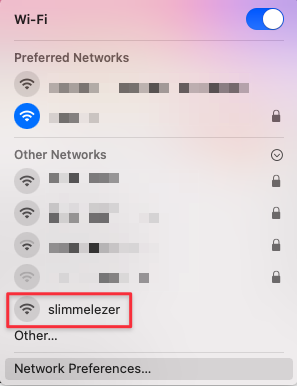 You can just connect to it and the configuration page will pop up automatically, (otherwise just browse to
 192.168.4.1).
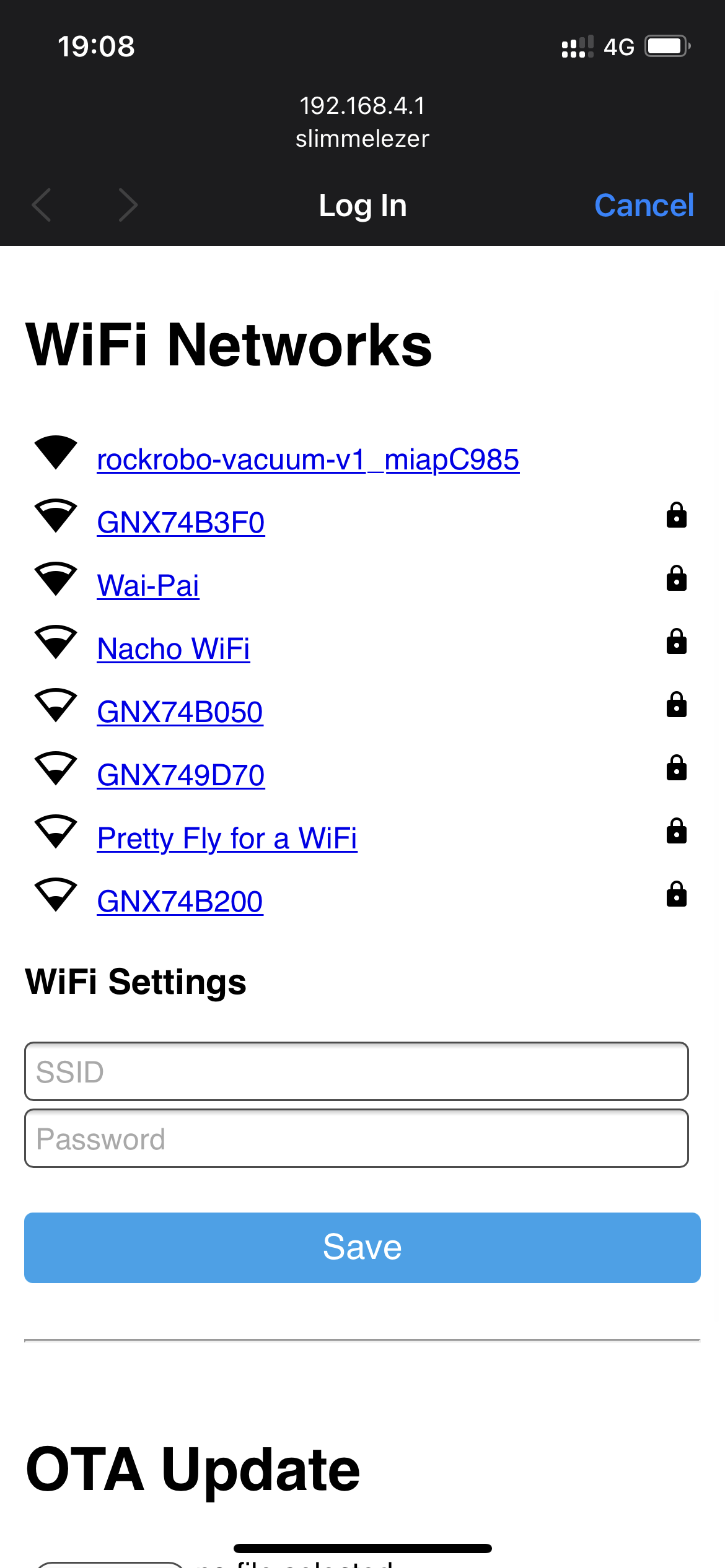 After you have connected it to your Wi-Fi, HomeAssistant should automatically discover the new device.

Now that the device is connected to your HomeAssistant, it should show up under “Integrations” as “slimmelezer-xxxxxx”. Now you can go to your “Energy” tab and configure it as your energy source. I added the following entities to my “Grid consumption”:
After you have connected it to your Wi-Fi, HomeAssistant should automatically discover the new device.

Now that the device is connected to your HomeAssistant, it should show up under “Integrations” as “slimmelezer-xxxxxx”. Now you can go to your “Energy” tab and configure it as your energy source. I added the following entities to my “Grid consumption”: sensor.energy_consumed_tariff_1 and sensor.energy_consumed_tariff_2. If you go to your Energy dashboard now, it will likely say “Results will show in an hour or two”. If you’re wondering, it actually took and hour or two for me to show up. Now my dashboard is filled with colorful data.
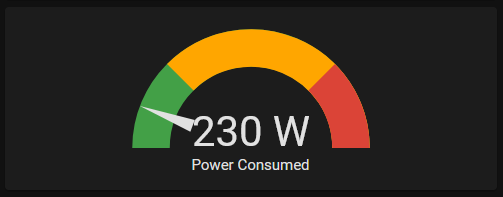
Widgets I made using the energy entity
The new barometer
Update 1: Fix for ‘last_reset’ warning that breaks the Energy dashboard
Go to https://www.zuidwijk.com/product/slimmelezer/ and download the last firmware for the slimme lezer (not the ESPHome one). Marcel has his own guide to update it by USB but I just use the default OTA (Over The Air) one from the web-ui. Download the .zip file, extract it and upload the .bin file. It should say something along the lines of Update succesful. Now it’s time to wait for a minute or two and set up your device again because it was reset to factory settings. Now it should work properly again in Home Assistant!